Using Redbrix
Browsing, editing, importing, filtering and navigating your data day to day.
Once you have connected your database, you can start using Redbrix to manage and interact with your data. The main dashboard provides an overview of your database structure, including tables and their relationships.
You can click on any table to view its contents, add new records, edit existing records, or delete records. Redbrix also offers powerful filtering and sorting capabilities, allowing you to easily find the data you need.
The homepage
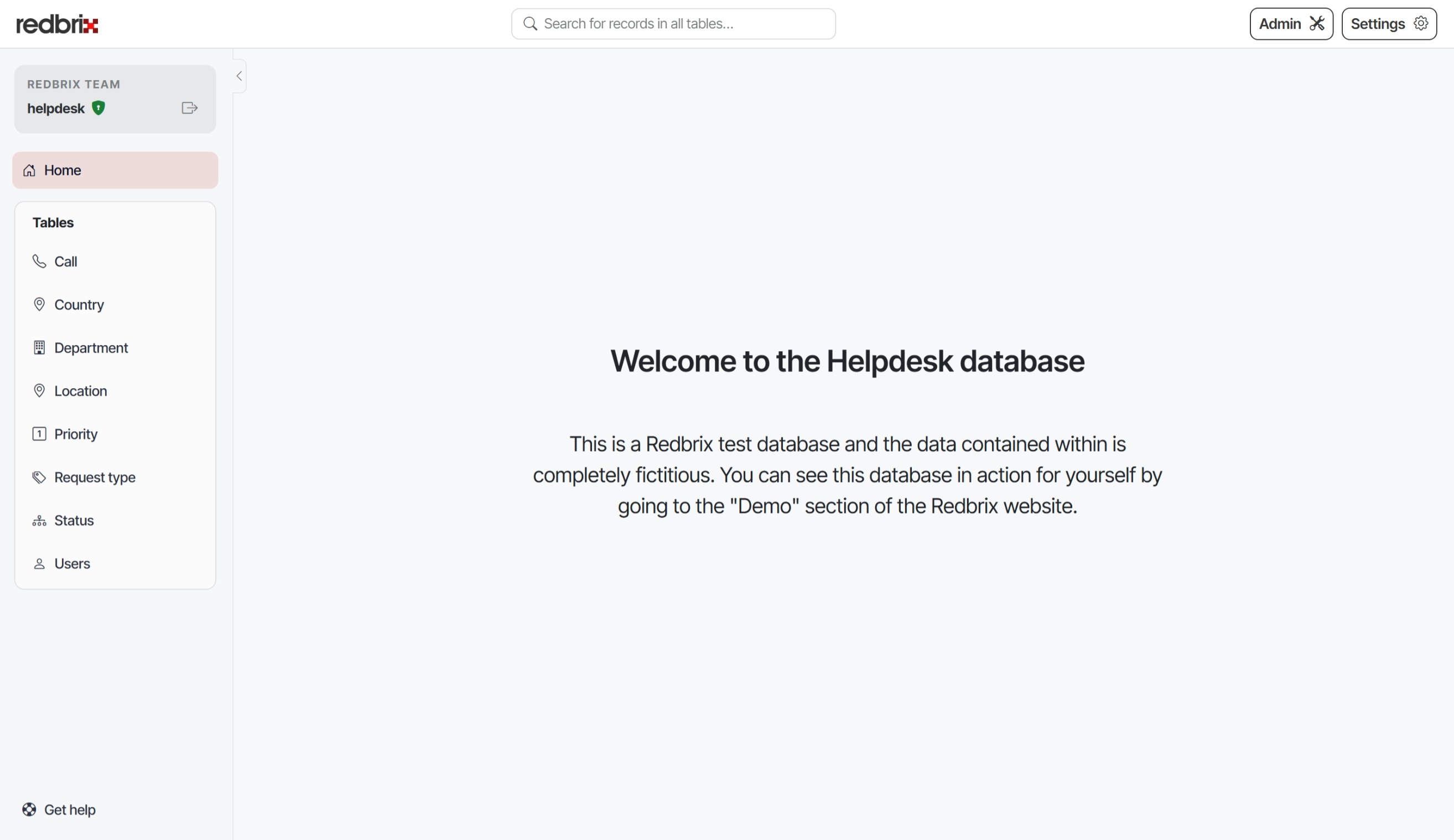
When you first connect to a database, you will land on the homepage. The exact layout and content will depend on the database you are connecting to and your permissions with the database. For example, if you are not given the admin role, you will not see the Admin button in the header bar.
On the left-hand side of the screen you will see the navigation panel, which comprises information relating to your current connection, a home button to return to this homepage and a section listing all the tables available to view in your database.
Note: If there are more than 12 tables available to view, the tables will be in a collapsible section labelled "All". To view the tables, simply open the "All" section. If there are more than 50 tables available, they will be grouped by function -- for example, all user-related tables might be grouped together under the heading "Users". Again, just open the section to see the tables inside.
Viewing tables
Clicking on one of these entries will display the contents of that table:
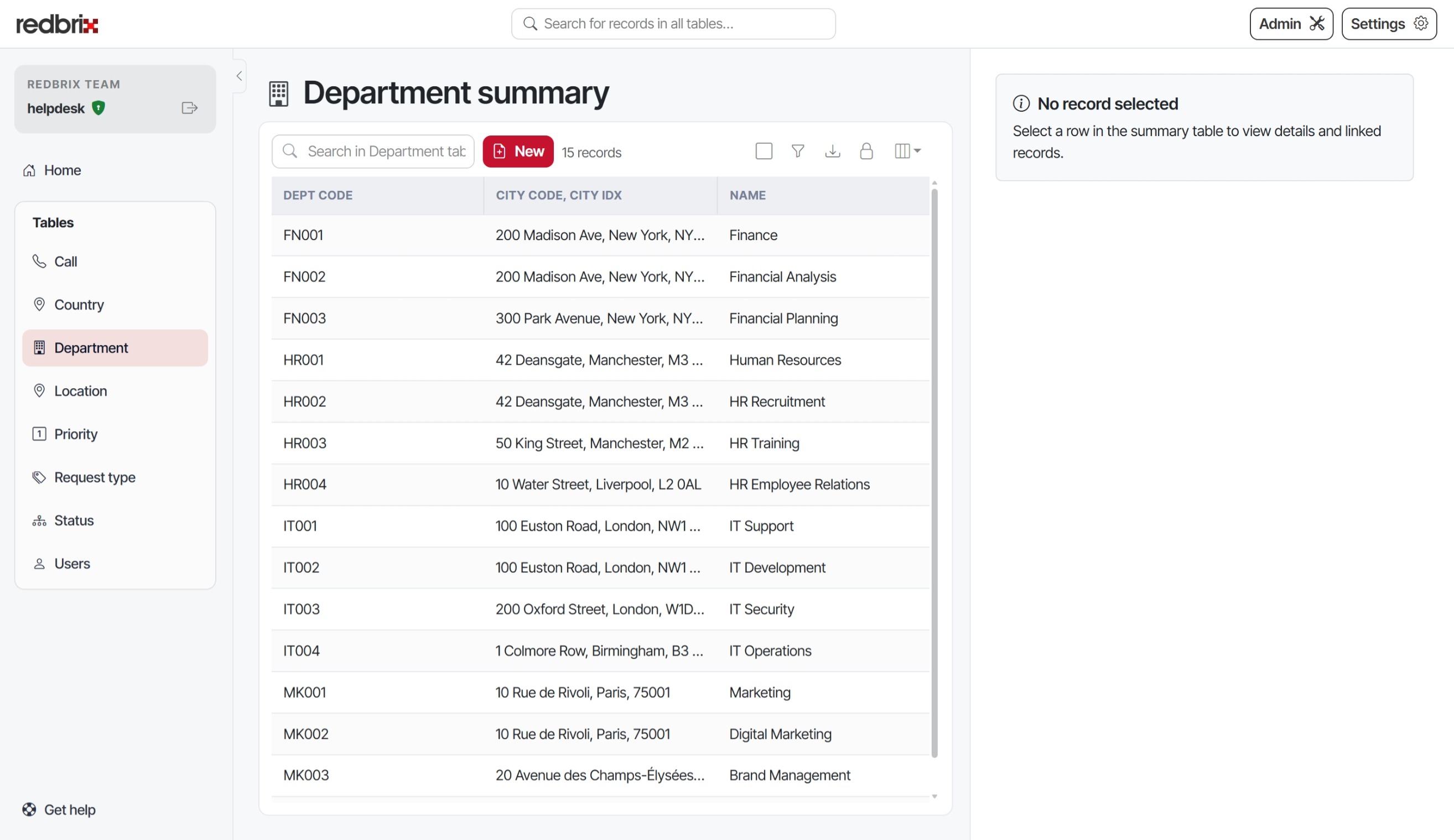
The first time you open a table for viewing, the right hand panel is empty (as shown above). If you click on a row, however, the right hand panel will display the details of the selected record.
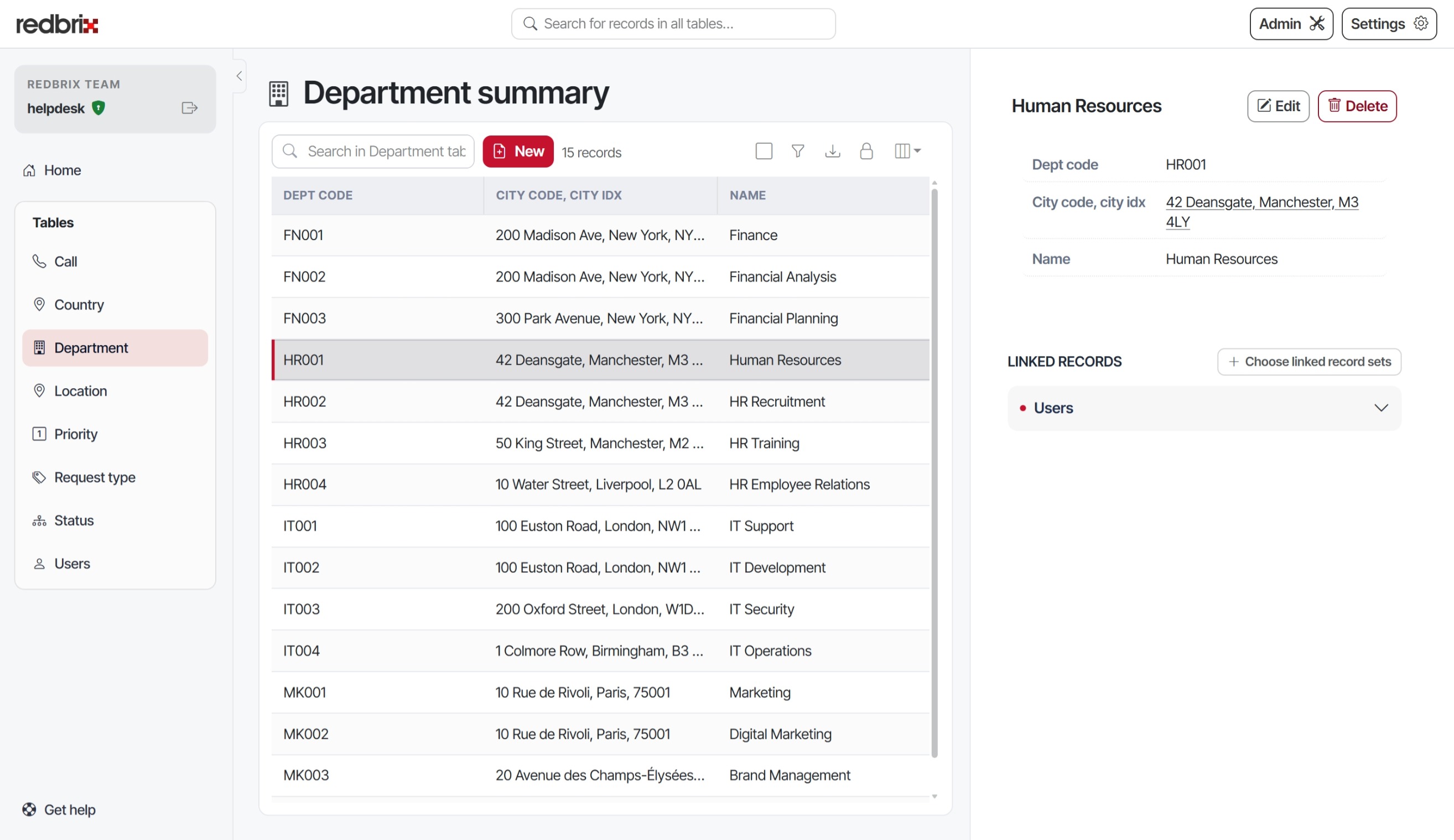
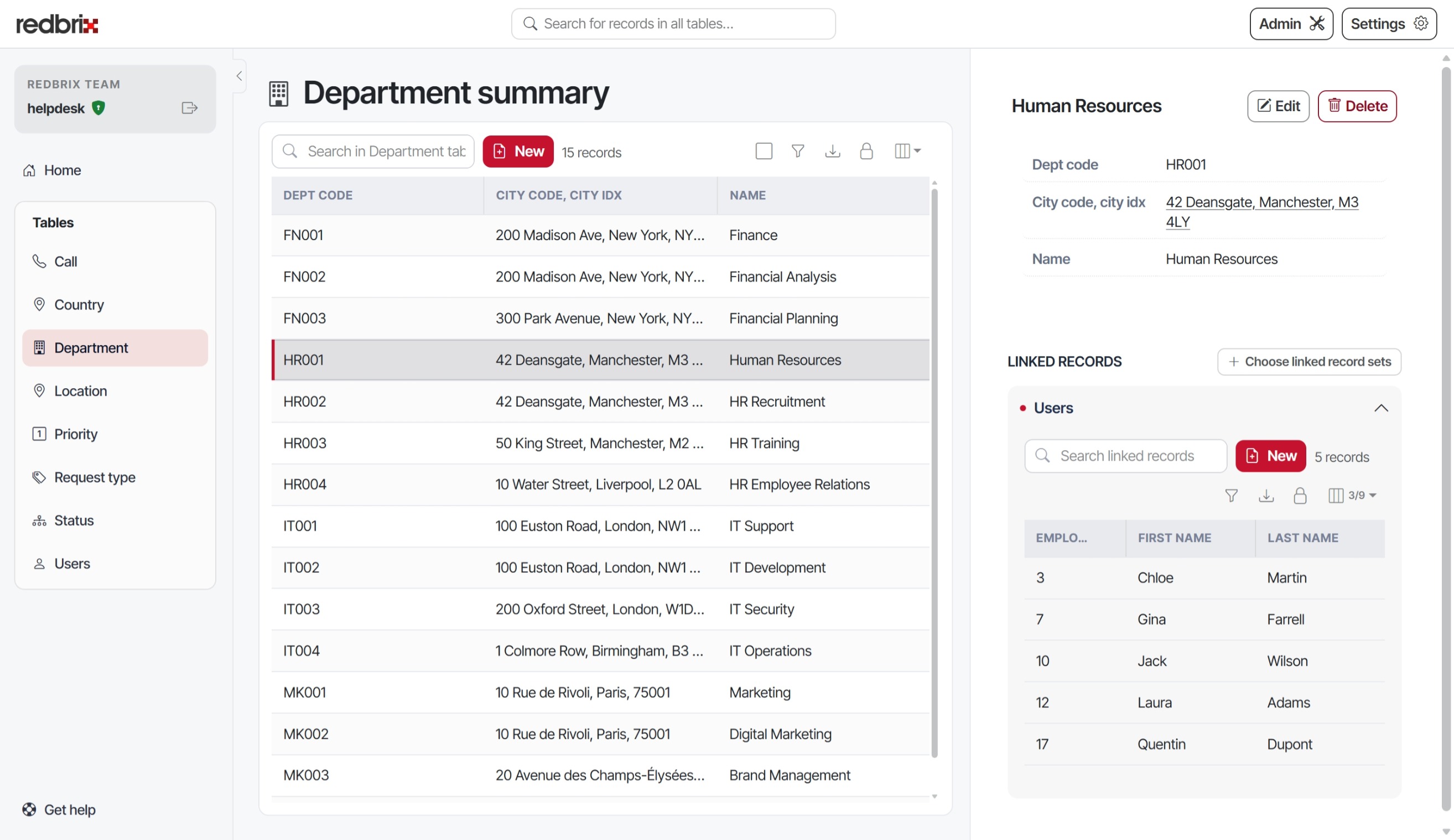
Depending on the structure of your database, the record may have linked records that reference the selected one. If this is the case, you will see a section below the selected record details, entitled "Linked Records". This contains one or more record sets that you can open by clicking the arrow on the right-hand side of the card:
Toolbar icons
Both the summary table and each linked record set carry the same toolbar above them, and the same cluster of icon controls at its right-hand edge. They appear in the order below. The linked records toolbar omits the first of them, because a linked set has no tick column.

- Select rows. When this is enabled, a column of checkboxes is displayed to the left of the summary rows, allowing you to select records to export to CSV (see below). Note that the tick column only applies to the current page of rows. The number of selected records is displayed in a counter next to the icon.
- Filters. This allows you to define filters to apply to the current record set. The type of filter available will depend on the column data type and it is possible to set more than one condition per column, and filter by more than one column at a time. When active, this icon is displayed filled in, with a count indicating the number of active filters.
- Export to CSV. This allows you to export the current record set to a CSV file. You can choose to export
- Selected rows: Exports only the records selected after enabling the tick column.
- This page: All the rows visible on the current page.
- Everything matching the current filter: Exactly what it says. Note: this will be all records in the table if no filters are set.
- Import from a spreadsheet. Adds records to the table from an Excel workbook, a CSV file or an OpenDocument spreadsheet. Shown only if you are allowed to add records to the table. See Importing from a spreadsheet, below.
- Edit lock. If an administrator has enabled this feature via the "global admin" page, this displays a padlock icon indicating whether the table is currently locked for editing. If unlocked, users may edit the table's cells in place.
- Choose columns This icon allows you to choose the columns currently displayed for this table. If not all columns are visible, it will also show a count indicating the total number of columns, e.g. "4/9" if four columns are currently showing out of nine available.
Creating and editing records
This section explains how to create new records and edit existing ones within the table.
Creating records
You can add new records by clicking the "New" button in the toolbar above the summary table. Clicking this will generate a form where you can input the details for the new record.
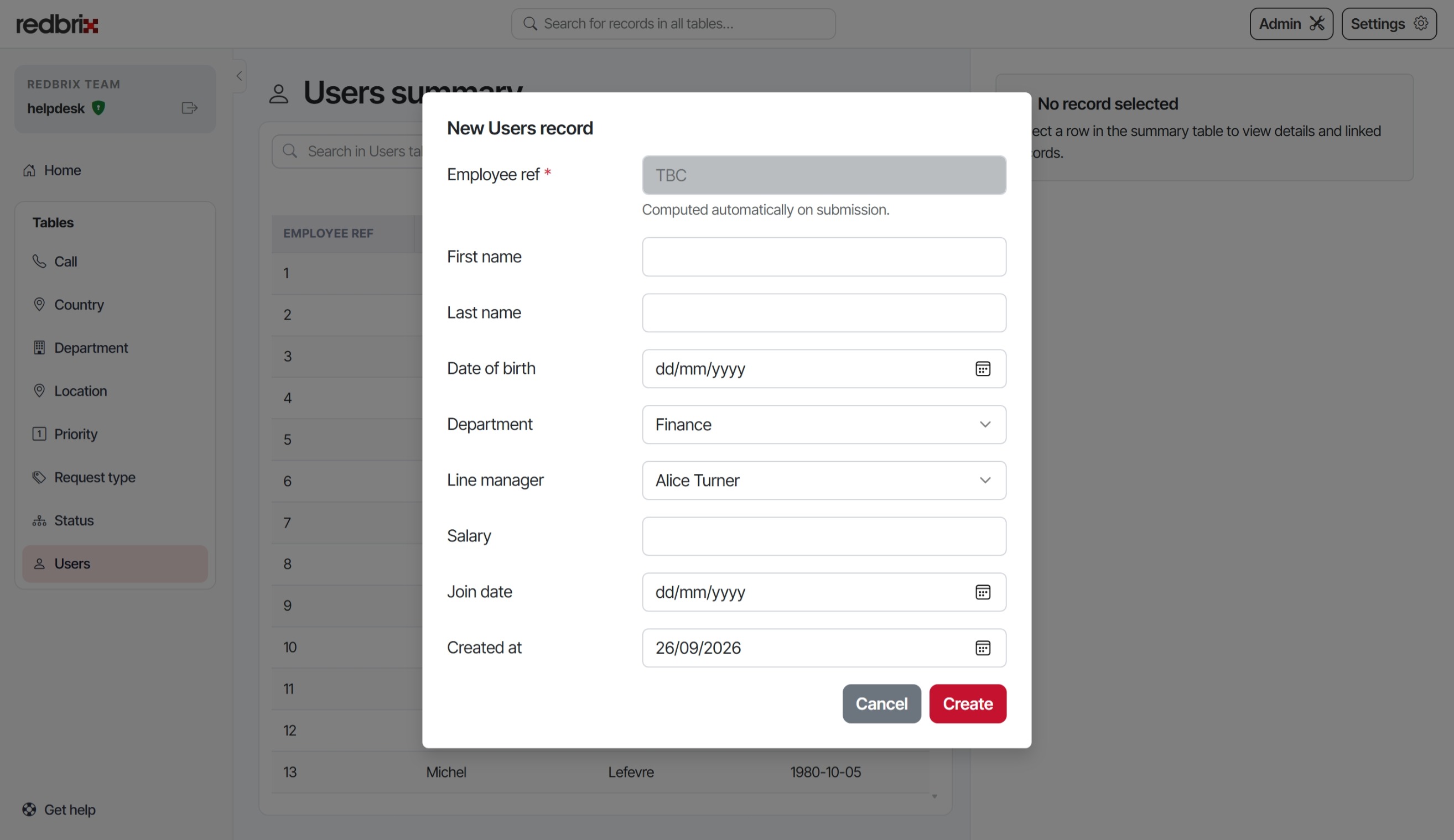
Note that each field in the form corresponds to a column in the summary table. All fields that are defined as not accepting null values in the database are deemed required and are displayed with an asterisk denoting them as such.
Editing records
To edit an existing record, click on the record in the summary table. This will open a form pre-filled with the current details of the record.
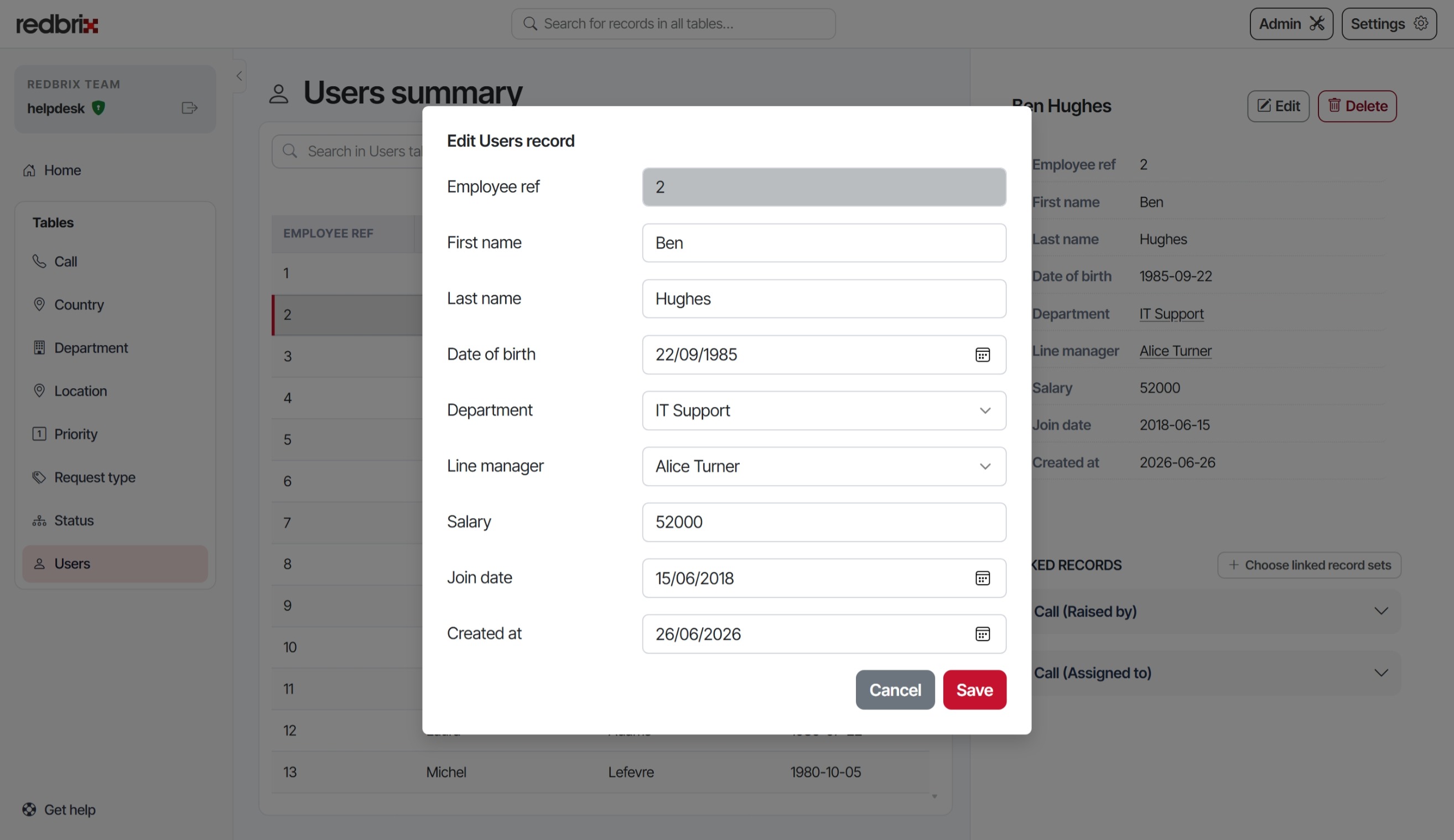
After making the necessary changes, click Save. The summary table will then be updated to reflect the changes.
Deleting records
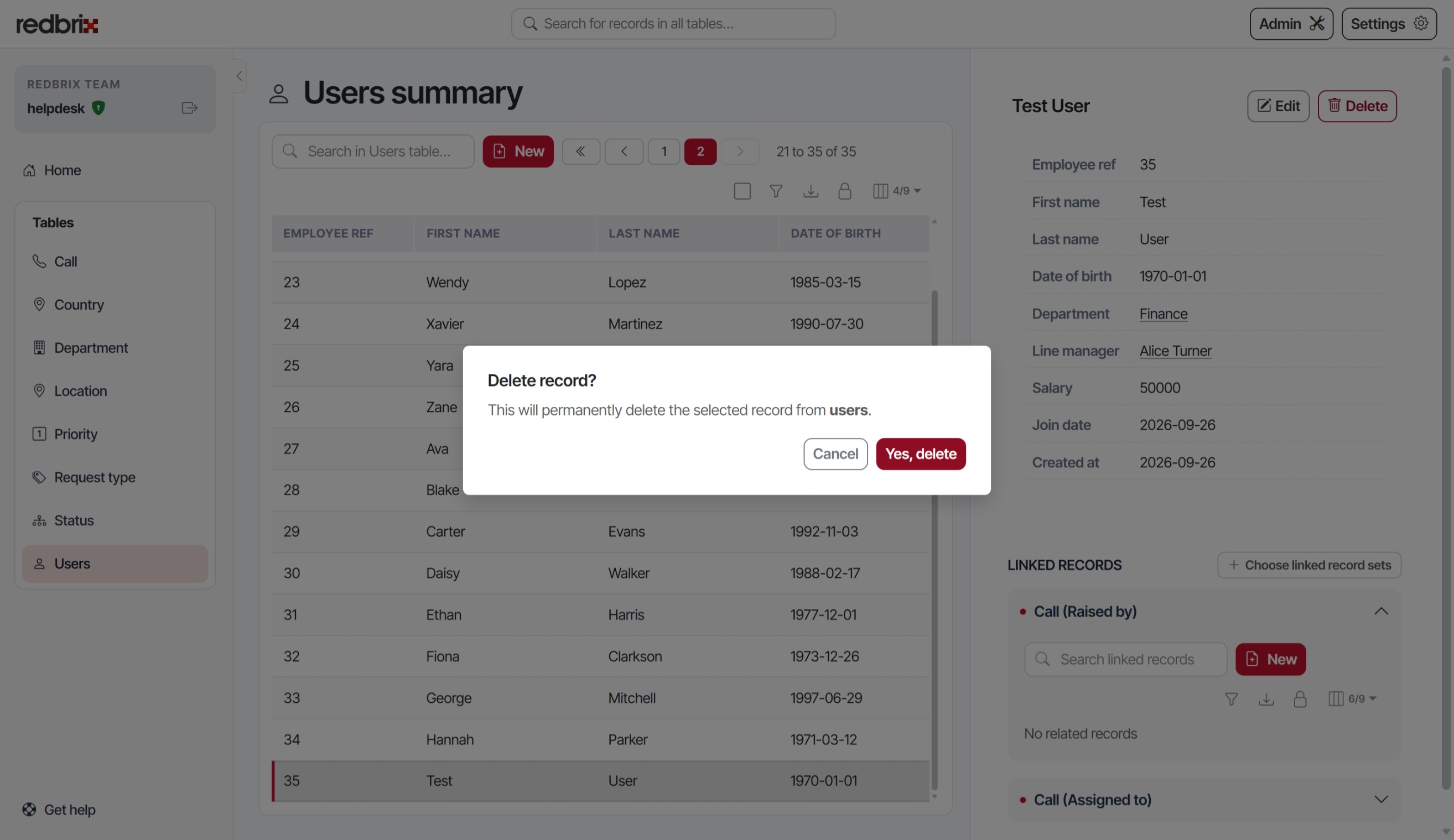
Only users with the appropriate permissions can delete records. This means either being logged into the database as a user with the DELETE permission (Free and Pro tiers) or belonging to a role with record deletion permissions. Either way, deleting a record is irreversible; make sure you really want to delete the record before confirming.
To delete a record, select the record in the summary table and click the Delete button. You will be prompted to confirm the deletion. Once confirmed, the record will be removed from the table.
Importing from a spreadsheet
You can add many records at once from a spreadsheet: an Excel workbook (.xlsx), a CSV file or an OpenDocument spreadsheet (.ods), up to 20 MB. One import adds up to 10,000 rows, or 100 on the Free plan. Anyone who can add records to a table with the New button can import into it, with the same permissions.
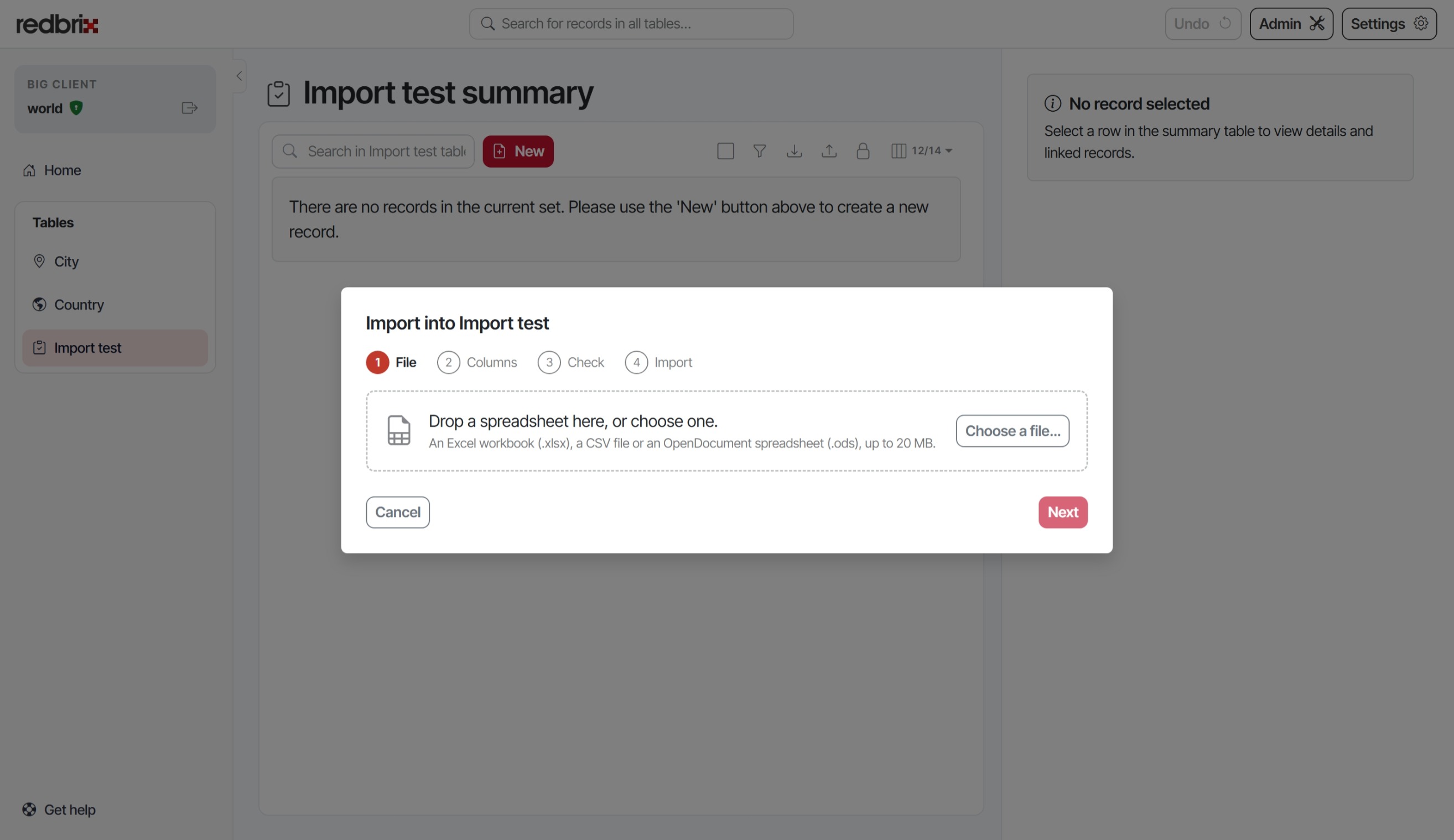
Click the upload icon in the table's toolbar to start. The import has four steps, and nothing is added to your database until the last one.
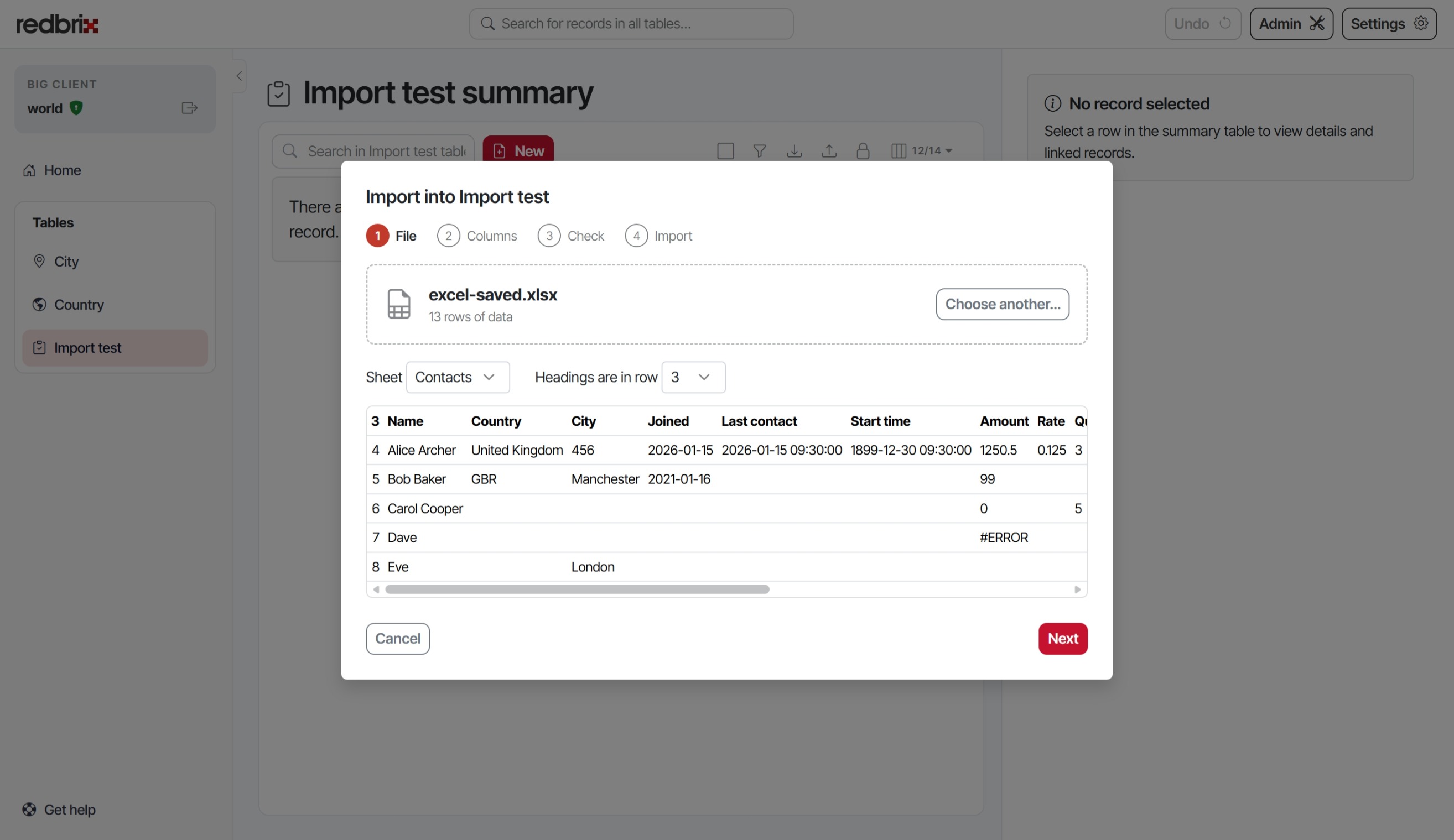
1. Choose the file
Drop the file on the dialog or choose it. Redbrix shows the first few rows and works out which row holds the column headings, passing over a title or blank lines above them. If it picks the wrong row, or the wrong sheet of a workbook, choose another.
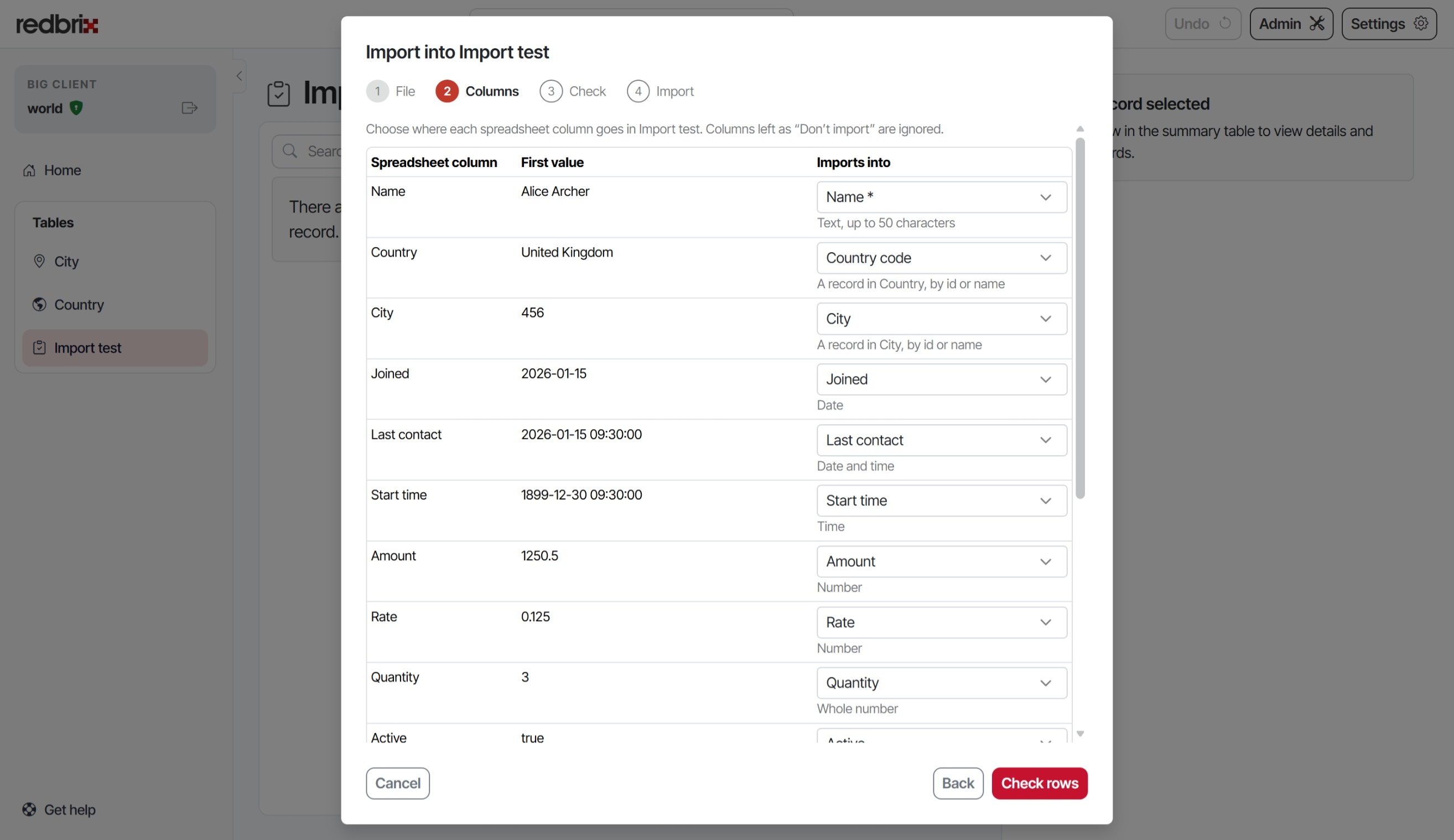
2. Match the columns
Each spreadsheet column is matched to a column of the table with the same name, ignoring capitals, spaces and underscores. Change any match, or set a column to Don't import. Columns every record needs are marked with an asterisk, and each must be matched before you can go on.
Some columns can't be imported: ones the database fills in itself, such as an automatic ID, and ones your permissions don't let you set. These are listed in the dialog, with the reason. If you match a date column, also say how dates like 03/04/2026 are written in your file: day first or month first.
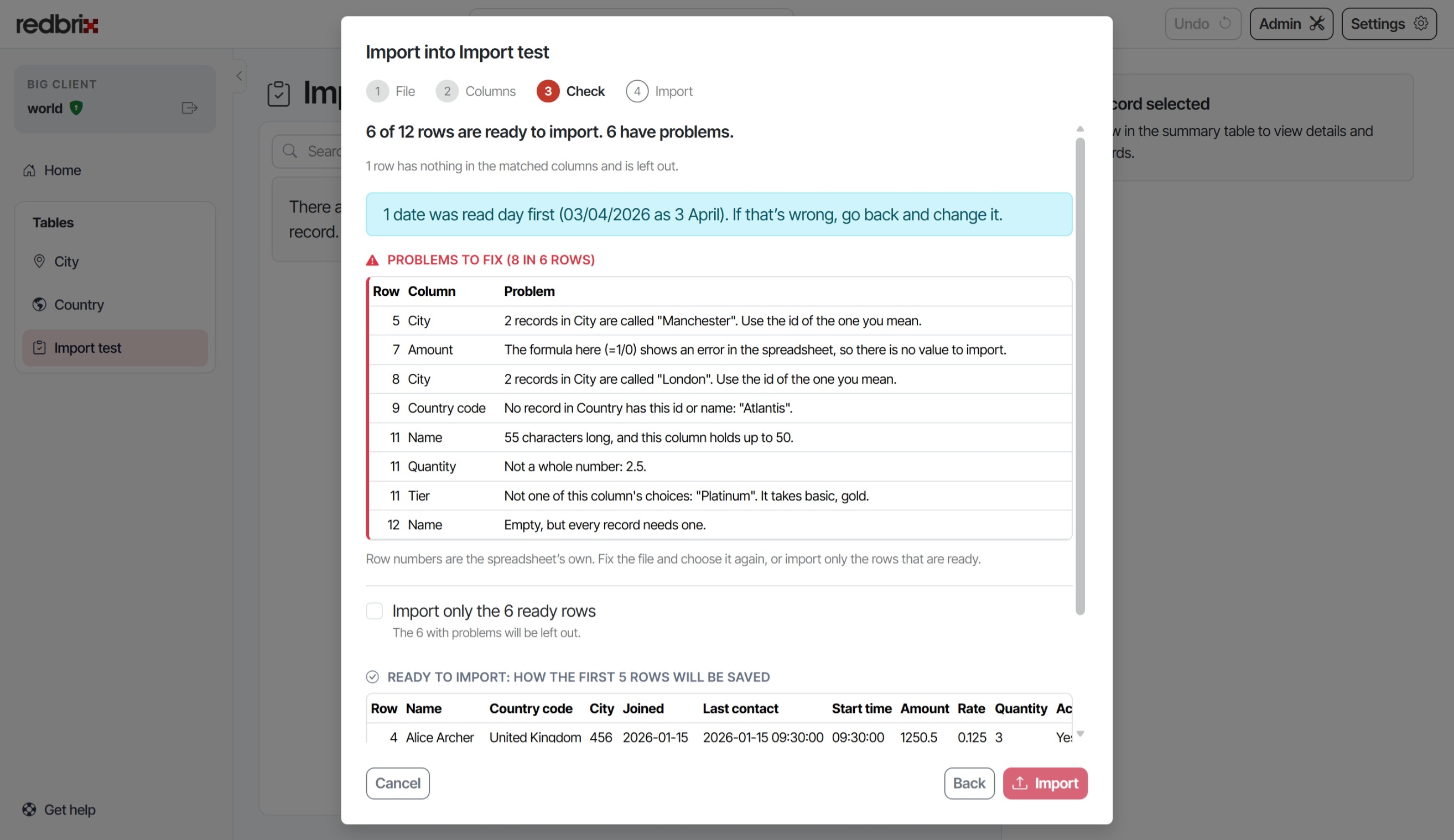
3. Check the rows
Every row is checked against the table, without writing anything. You'll see how many rows are ready, and a list of problems by row and column, such as a date that can't be read or a value that is too long. Row numbers are the spreadsheet's own, so you can find each one in your file. Below the list, the first few ready rows are shown as they will be saved.
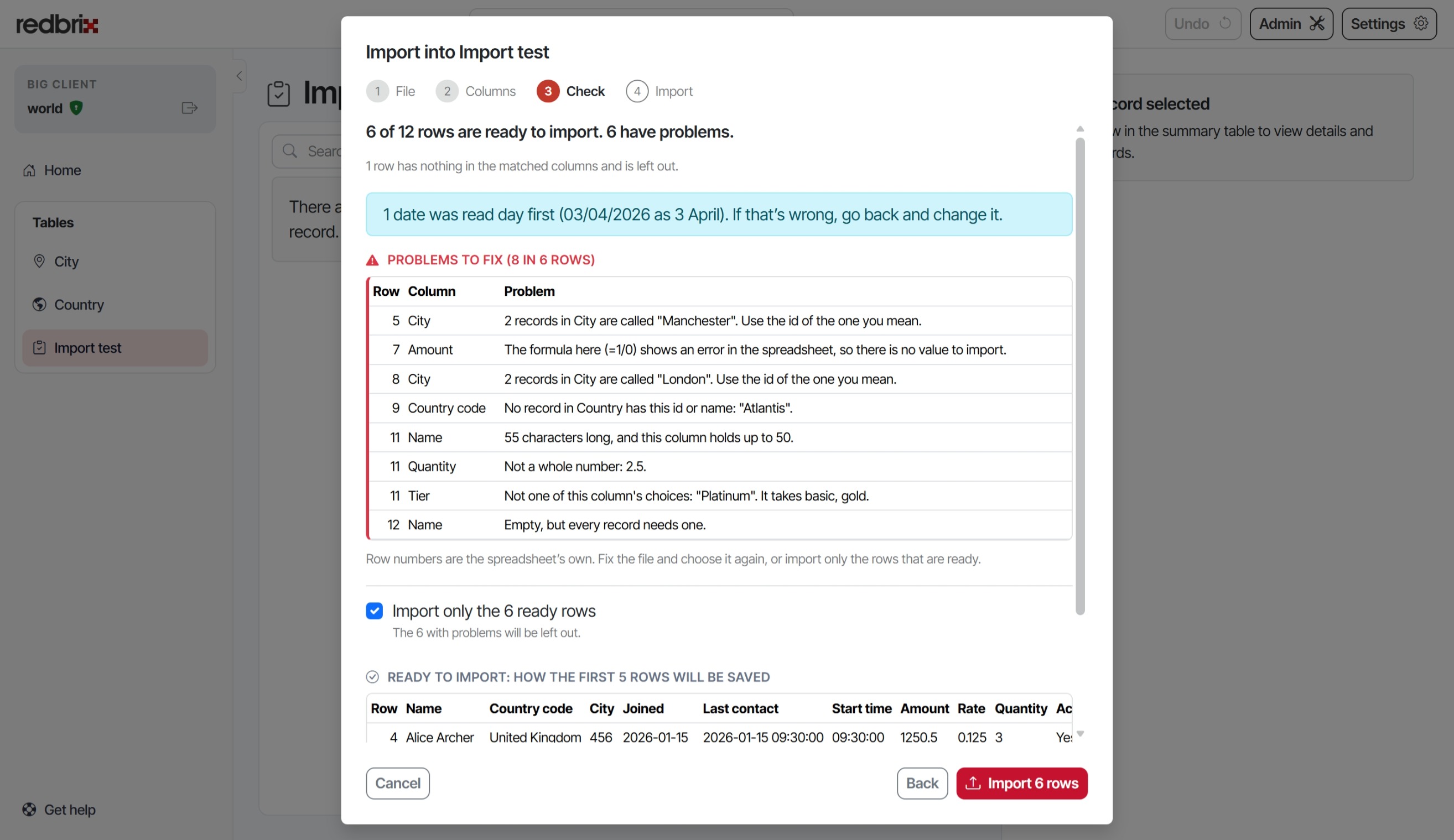
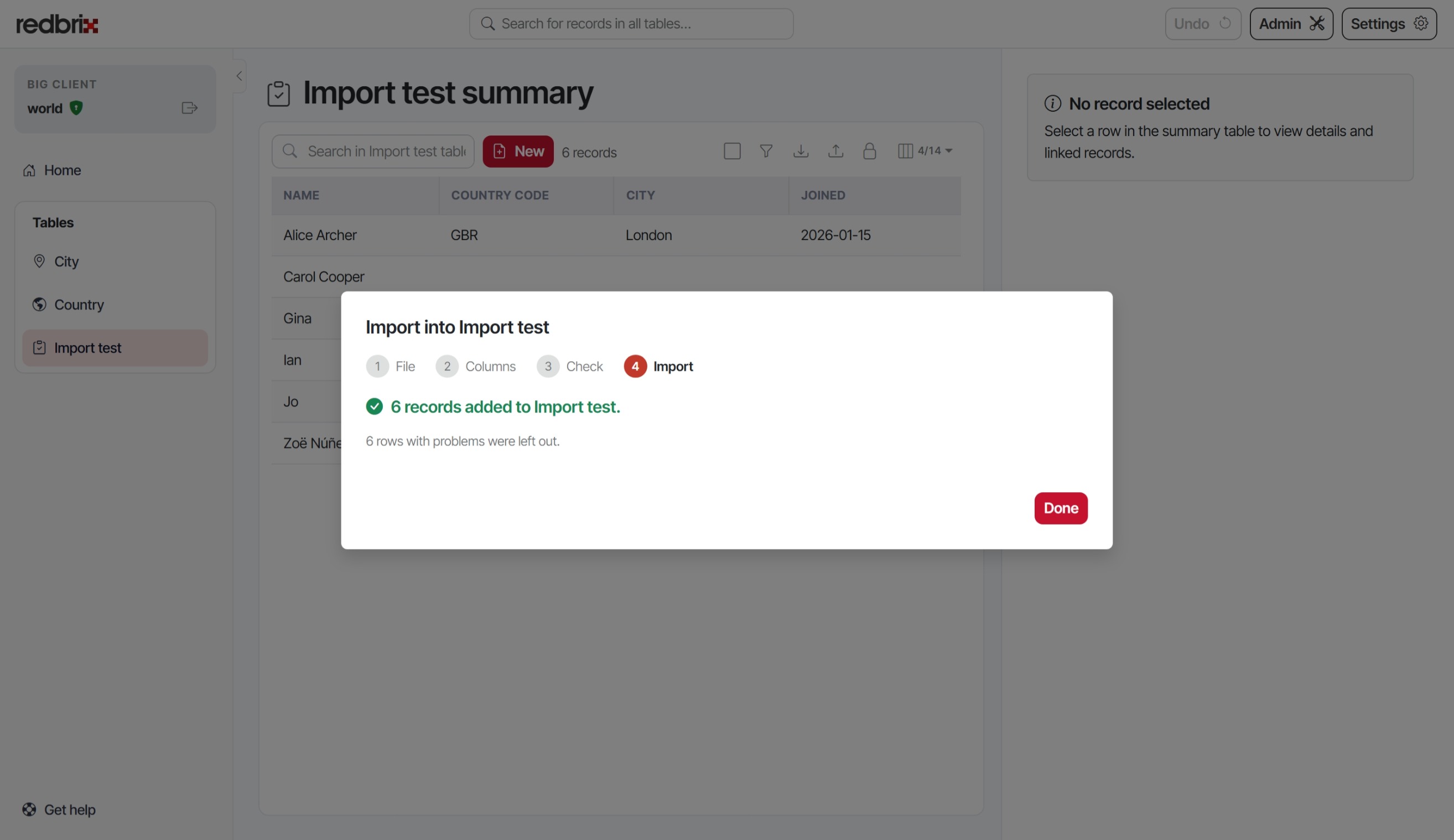
4. Import
Normally an import is all or nothing: if any row has a problem, nothing is imported, so fix the file and choose it again. To import the ready rows anyway and leave out the others, tick Import only the ready rows before clicking Import.
The database can still refuse a row the check couldn't foresee, for example one repeating a value that must be unique. In an all-or-nothing import, nothing is added and the refused row is named. When importing only the ready rows, that row is left out and listed when the import finishes.
An import can't be undone in one step, so check the results before importing a large file. On the Team plan, each import is recorded in the audit log, with who made it, the table and the number of records.
How values are read
- Empty cells leave the column to its default value, as leaving a field blank in the New form does.
- Numbers can include a currency sign and thousands separators:
£1,250.50. In a CSV file separated by semicolons, as European versions of Excel save them, a comma is the decimal point. - Percentages are stored as the value of the cell: 12.5% is stored as 0.125.
- Dates can be real Excel dates, or written as text such as
2026-10-31,31/10/2026or31 Oct 2026. Times can be written as14:30or2:30 pm. - Yes or no columns take yes and no, true and false, or 1 and 0.
- Columns with a fixed list of choices take one of those choices, ignoring capitals.
- Linked records can be given by ID or by name, as the name appears in the linked record's drop-down list. A name that matches more than one record is a problem for that row, rather than a guess: use the ID instead.
- Formulas are imported as the result shown in the spreadsheet. A cell showing an error, such as
#DIV/0!, is listed as a problem. - Hidden rows are imported like any other. Delete rows you don't want imported.
Importing only adds new records. It doesn't update existing ones, and columns holding files or map locations can't be imported.
Your spreadsheet isn't stored by Redbrix. Your browser sends it at each step, and it is read and discarded within that step.
Using filters
Filters allow you to narrow down the records displayed in the summary table based on specific criteria. To create a filter, first click the filter icon on the summary table (as described in the Toolbar icons section).
Filter name
You can save the filter permanently by giving it a name and clicking Save. If you are an administrator, you can also choose to make the filter available to all users by selecting the Share with everyone on this connection checkbox.
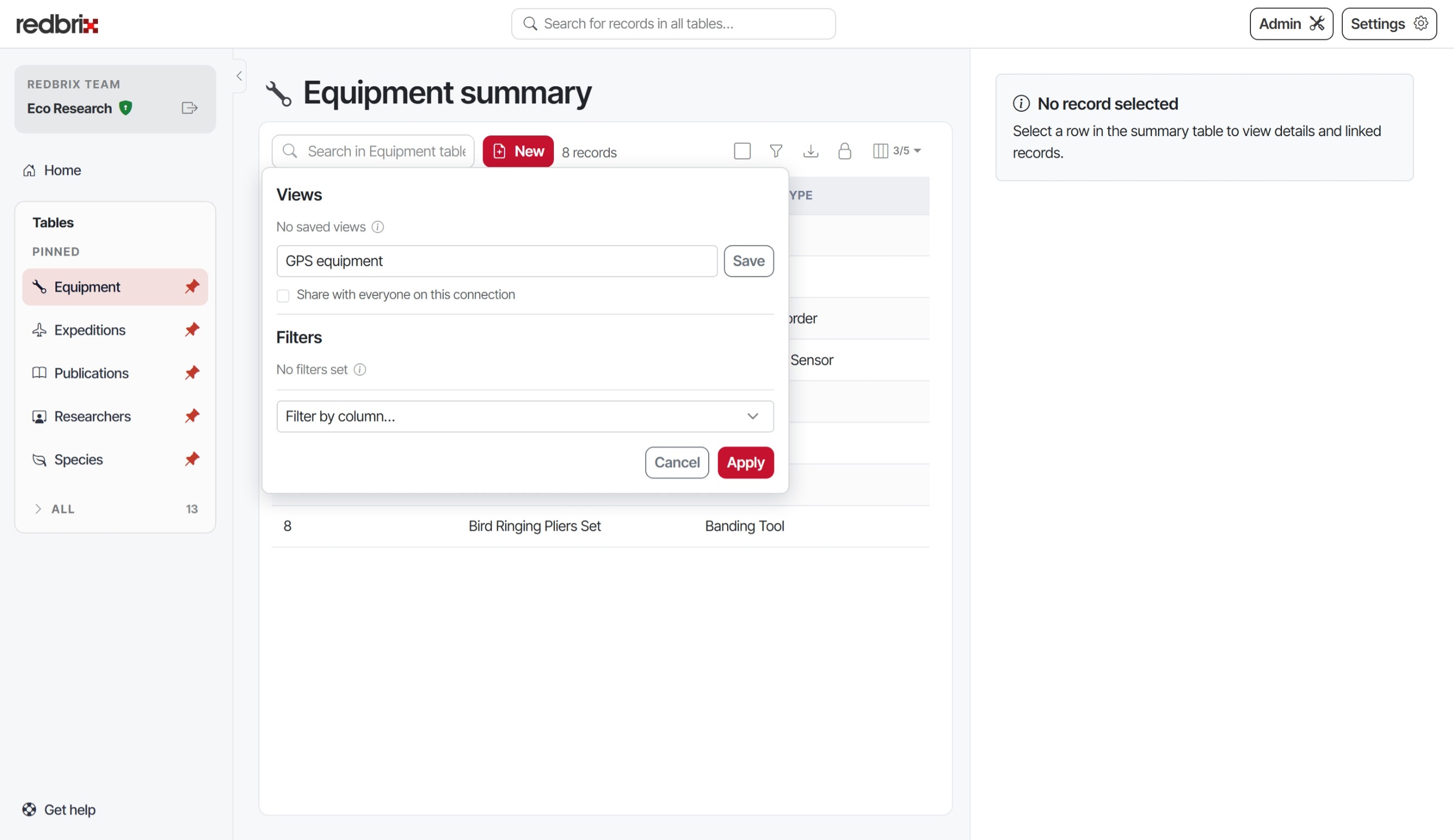
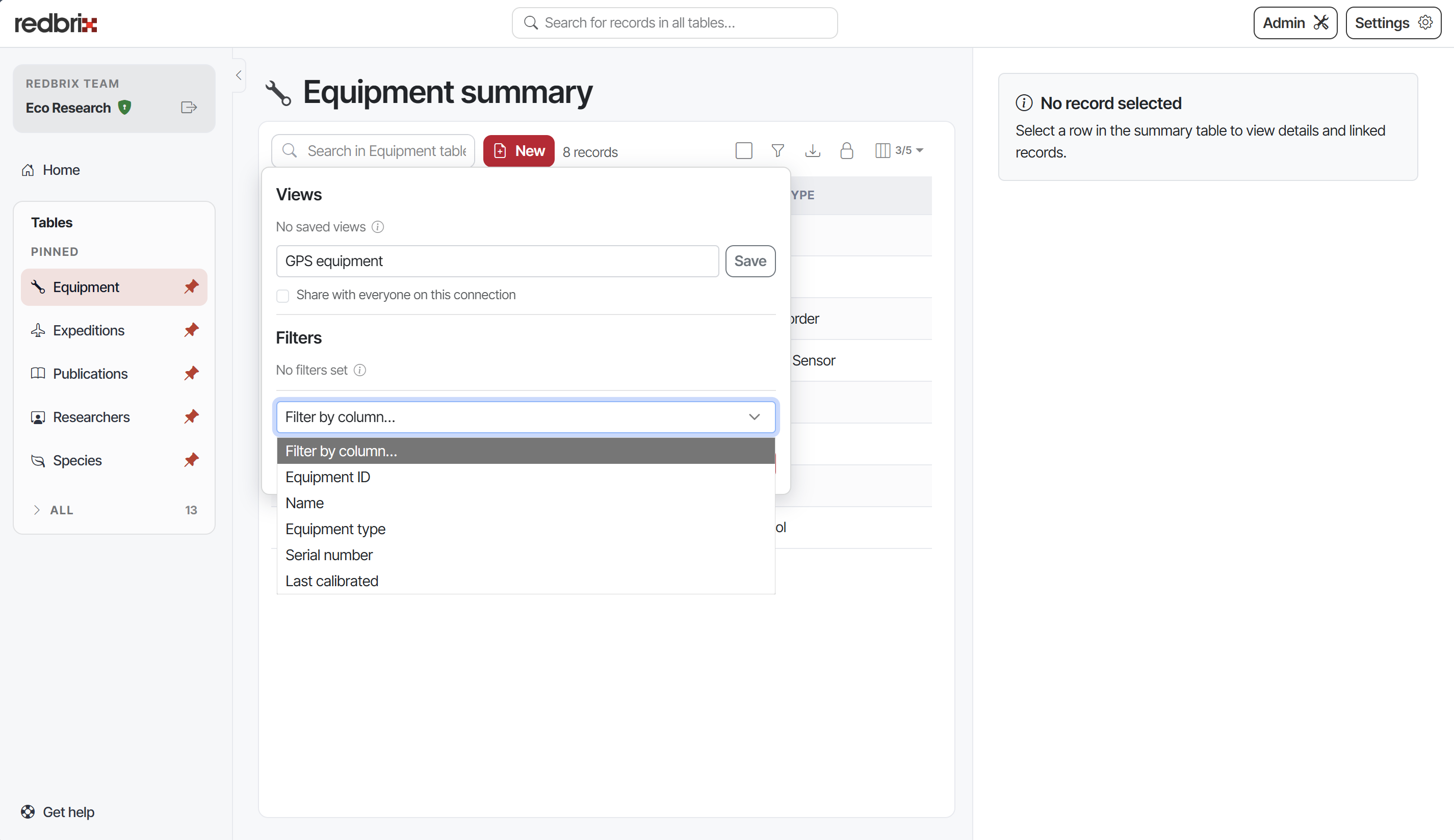
Choose column
First, select a column on which you want to filter:
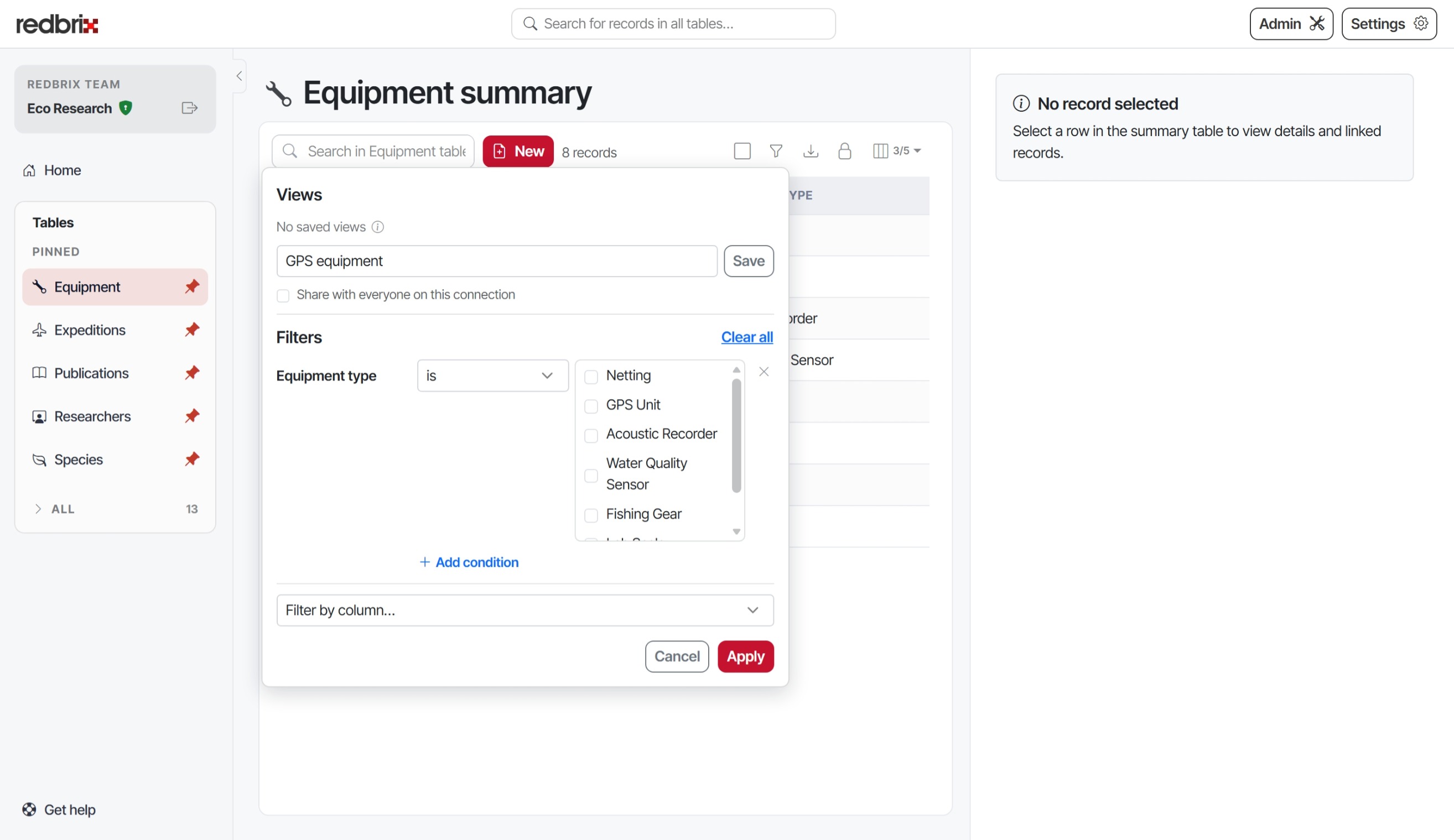
Specify an operator and value
Next, choose an operator (such as "is", "contains", or "starts with") and specify the value to filter by. Note that depending on the selected column and operator, the value format may vary. For example, if the column contains a finite set of options, they will be displayed as a list of checkboxes similar to the one shown below.
Apply the filter
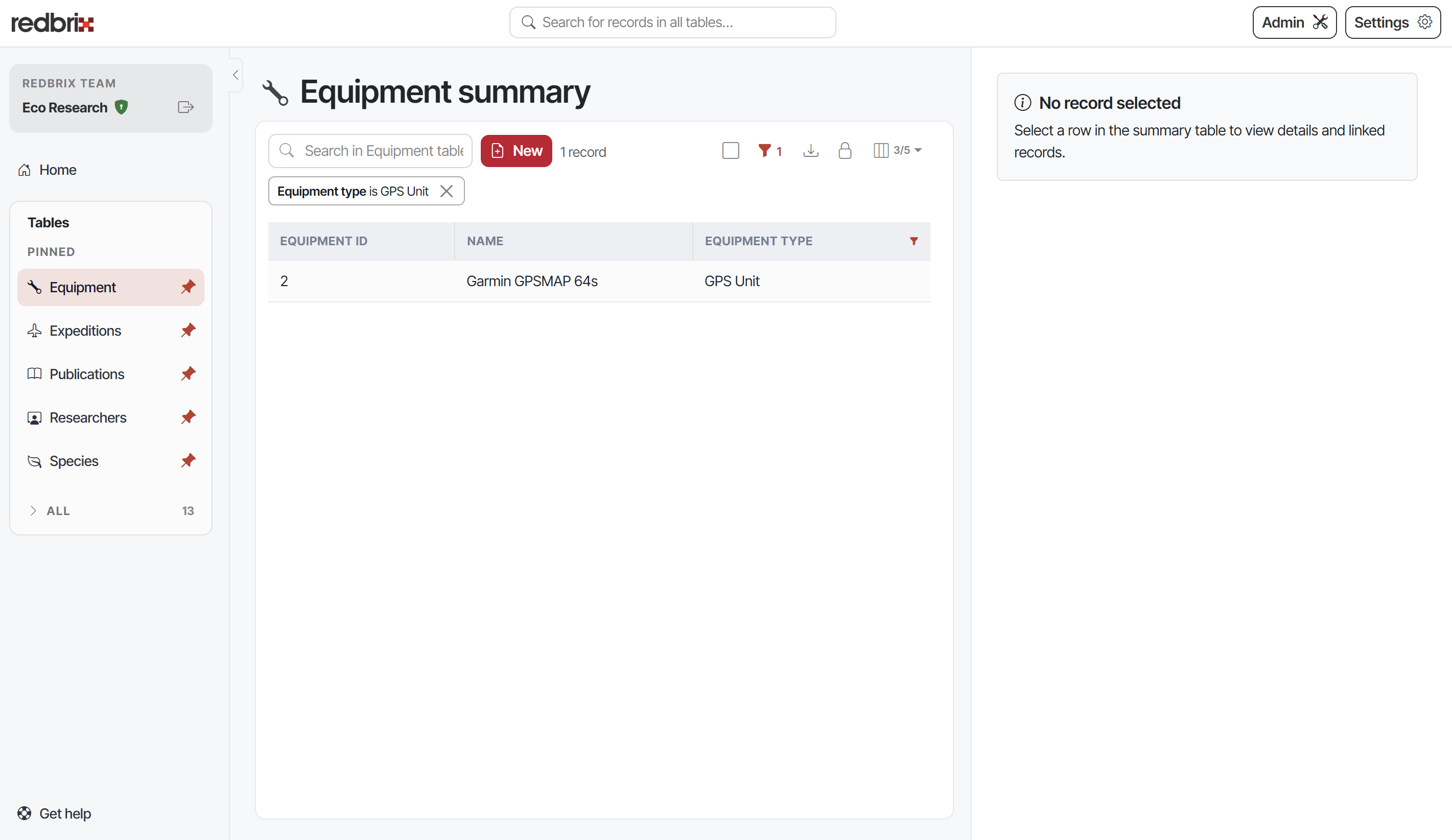
Once you click Apply, only the records matching the criteria will be displayed in the summary table and a badge will appear above the table showing any filters that are active. These have a close icon ("X") that can be clicked to remove the filter quickly. Note also that the filter icon in the toolbar will be filled and accompanied by a number, showing how many filters are currently applied.
Inline editing
If your administrator has enabled inline editing, you can edit records directly within the summary table. To do this, first click the padlock icon in the toolbar (see Toolbar icons section above) to unlock inline editing for the table.
Now, when you hover over a cell in the summary table, the inline edit icon will appear:
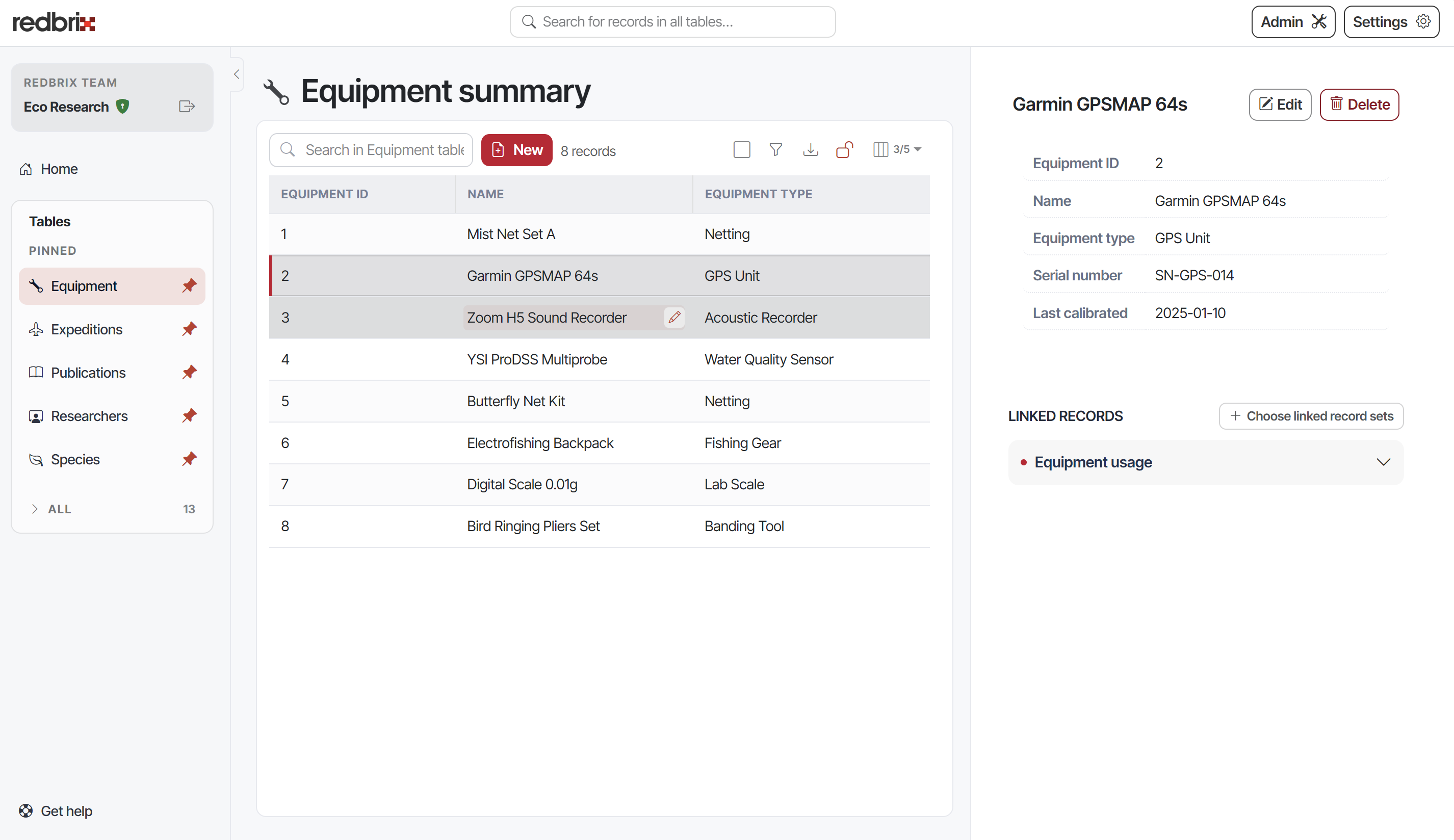
After clicking the inline edit icon or double-clicking the cell, you can modify the cell's content directly within the summary table.
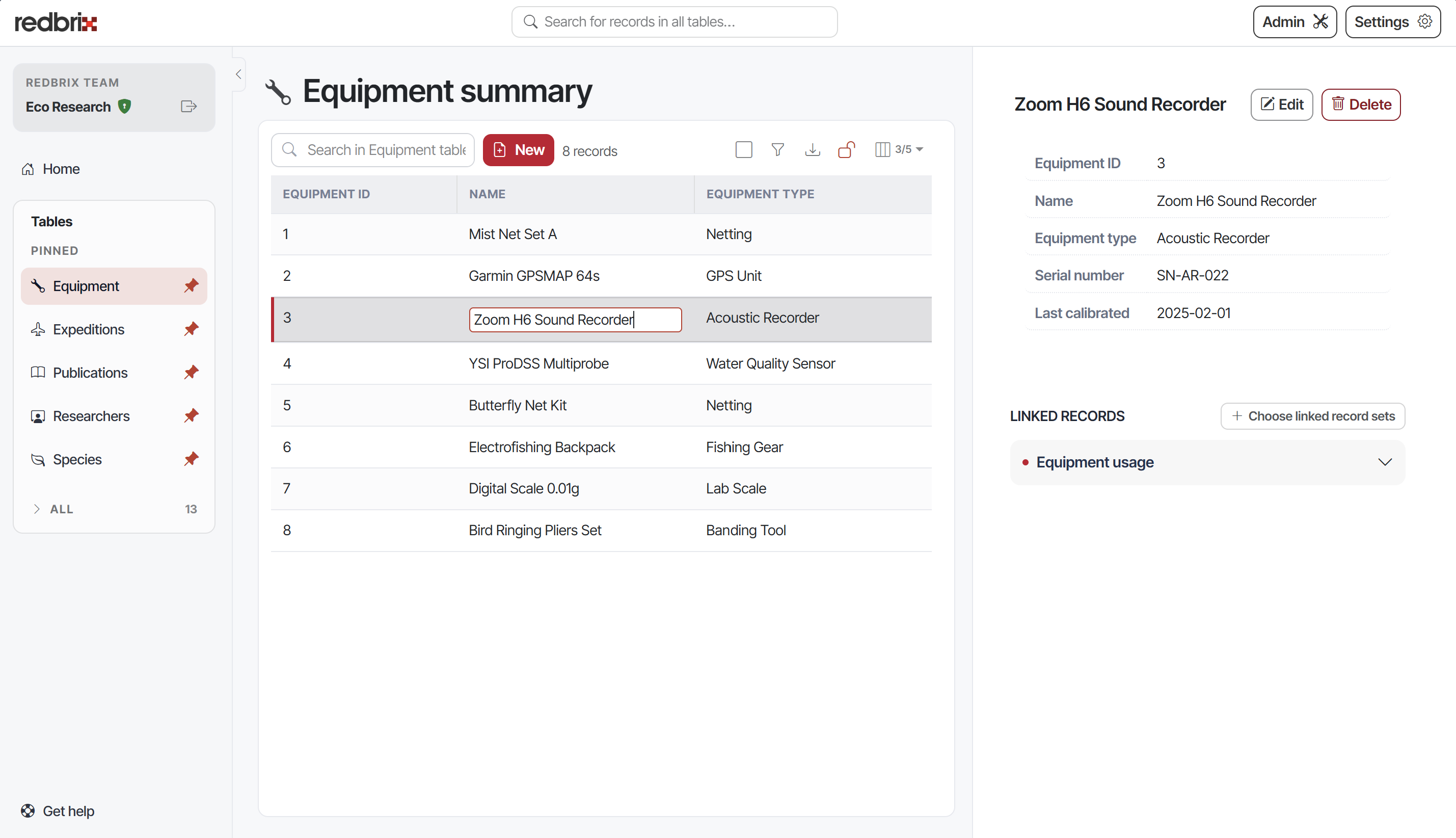
Press Enter or click outside the cell to apply the changes (or press Esc to cancel). Any changes will be reflected immediately in the summary table.